Another Project: Product Page
My cousin had a co-op where he worked with ABUS as an industrial designer — he designed helmets. I thought it would be cool to use some Three.js to bring the helmet to life with a scrolling product page like you might find on when Apple's website when they've released a new product.
In this project, some notable libraries are:
- Three.js
- react-three-fiber
- GSAP
I'm using Vite, so we can get started quickly with npm install vite@latest and selecting react. Next, install a few dependencies.
@react-three/fiber@react-thre/dreithreegsap
Or: npm install @react-three/fiber @react-three/drei three gsap
I ran into a little trouble using a helmet model too soon that had a strange origin that I couldn't quickly resolve in blender, so I went back to a trusty cube.
Here's the outline of scrolling:
- import scroll elements from
drei - wrap things you want to scroll with
<ScrollControls>...</ScrollControls> - Use
useFramealongsideuseScrollto animate
Code
// App.jsx
// Import scroll things
import { ScrollControls, Scroll } from '@react-three/drei'
If you want the items to scroll with the page, wrap them in the <Scroll>...</Scroll> element.
If you only want to have access to the scroll offset, then there's no need for the <Scroll>...</Scroll> element.
// App.jsx
// Put your scroll items in Scroll Controls
<Canvas>
  <ScrollControls pages={3}>
    <Helmet />
  </ScrollControls>
</Canvas>
Helmet.jsx
Let's get the necessary libraries into this file
// Helmet.jsx
import React, { useRef, useLayoutEffect } from "react";
import { useFrame } from "@react-three/fiber";
import { useScroll } from "@react-three/drei"
import gsap from "gsap"  // so we can animate
Here, we will:
- get access to the scroll element
- define our
gsaptimelines - get a ref to the object we are animating
- progress our
gsaptimeline inside of auseFramehook
const modelRef = useRef() // don't forget to put this ref on your mesh!
const tl1 = useRef() // gsap timeline ref
const scroll = useScroll() // access to the scroll offset

// define our gsap timeline
useLayoutEffect(() => {
    tl1.current = gsap.timeline();
    tl1.current.to(
      modelRef.current.rotation,
      {
        duration: 2,
        y: -Math.PI,
      },
      0
    );
  }, []);

  // sync up gsap timeline with scroll offset
  useFrame((state, delta) => {
    tl1.current.progress(scroll.offset);
  });

  return (
    <group {...props} dispose={null} ref={mRef} position={[0, 0, 0]}>
      <mesh>
        <boxGeometry args={[100, 100, 100]} />
        <meshStandardMaterial color="hotpink" />
      </mesh>
    </group>
  );
Alright, that's the basic idea. You can make more gsap timelines to be triggered at different points of the scroll using scroll.range(start,stop)
I'm not sure if this is the best approach (if it isn't, somebody contact me please), but I used this pattern to establish different scroll effects are different times.
  const mRef = useRef();

  const tl1 = useRef();
  const tl2 = useRef();
  const tl3 = useRef();

  const scroll = useScroll();
  useFrame((state, delta) => {
    const a = scroll.range(0 / 4, 1 / 4);
    const b = scroll.range(1 / 4, 2 / 4);
    const c = scroll.range(2 / 4, 3 / 4);

    tl1.current.progress(a);
    tl2.current.progress(b);
    tl3.current.progress(c);
  });

  useLayoutEffect(() => {
    tl1.current = gsap.timeline();
    tl1.current.to(
      mRef.current.rotation,
      {
        duration: 2,
        y: -Math.PI,
      },
      0
    );
  }, []);

  useLayoutEffect(() => {
    tl2.current = gsap.timeline();
    tl2.current.to(
      mRef.current.rotation,
      {
        duration: 2,
        x: Math.PI / 2,
      },
      0
    );
  }, []);

  useLayoutEffect(() => {
    tl3.current = gsap.timeline();
    tl3.current.to(mRef.current.position, {
      x: -3,
    });
    tl3.current.to(
      mRef.current.rotation,
      {
        z: Math.PI / 2,
      },
      ">"
    );
  }, []);
Each of the layout effects creates a different part of the gsap timeline. I believe that maybe this is unnecessary, but it gives me the opportunity to later add to the dependency array of useLayoutEffect hook so I can dynamically add to gsap timeline.
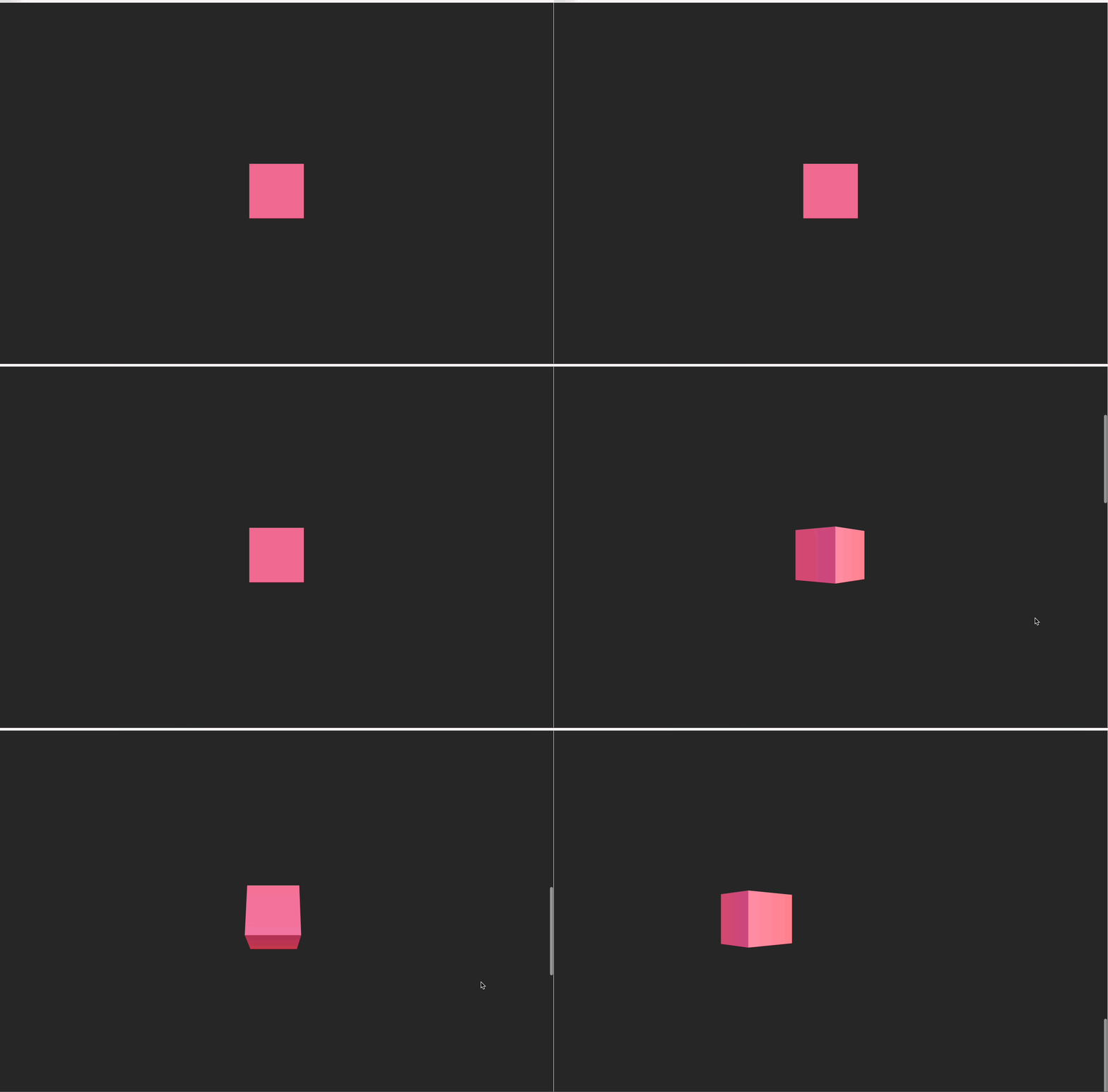 Hurray, an animated cube!
I'll replace this once I get the file...
Adding Text
Okay, remember what I said earlier about the <Scroll>...</Scroll> element? You use it if you want the stuff to scroll inside. Let's use this to scroll our text.
// App.jsx
...
        <ScrollControls pages={3}>
          <Helmet scale={0.02} position={[0, 2.5, 0]} />

          <Scroll html style={{ width: "100%", color: "white", margin: "3vw" }}>
            {/* DOM contents in here will scroll along */}
            <h1 style={{ top: "60vh", position: "relative", fontSize: "7em" }}>
              Helmet Product Page
            </h1>
            <h1 style={{ top: "100vh", position: "relative" }}>second page</h1>
            <h1 style={{ top: "200vh", position: "relative", left: "50vw" }}>
              check out these lights
            </h1>
          </Scroll>

        </ScrollControls>
...
 Now there's text!
This is still a work in progress, so I'll be visiting later